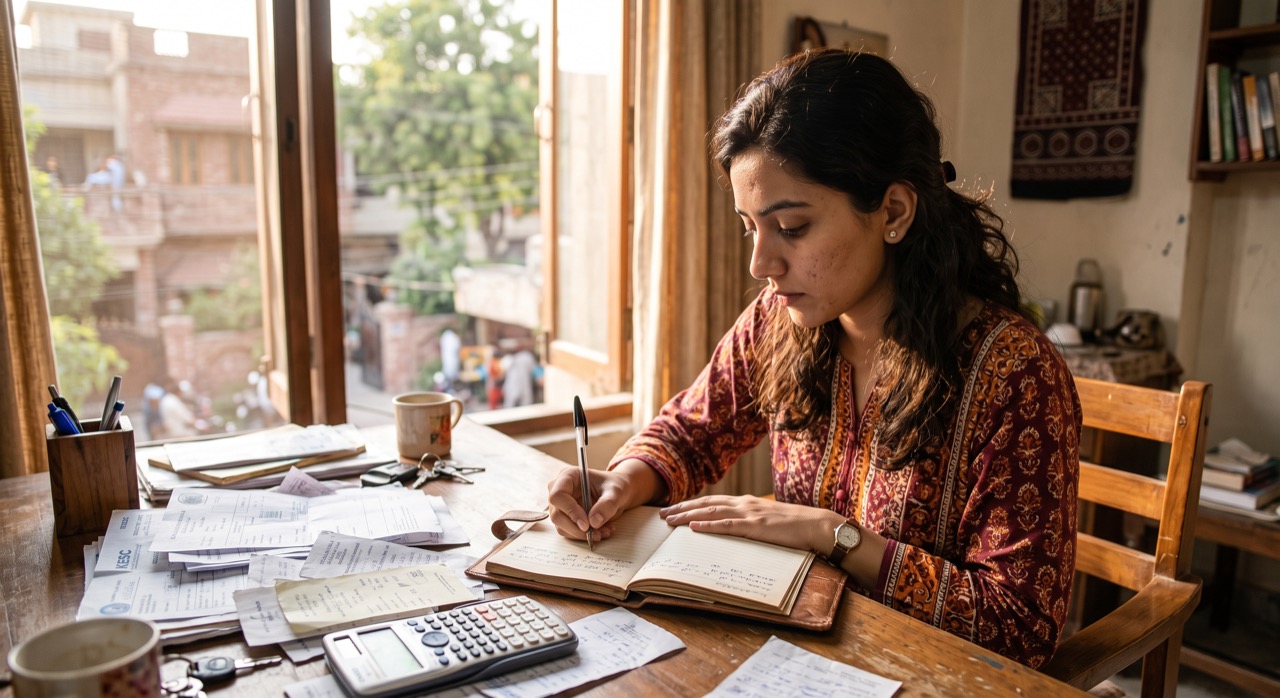
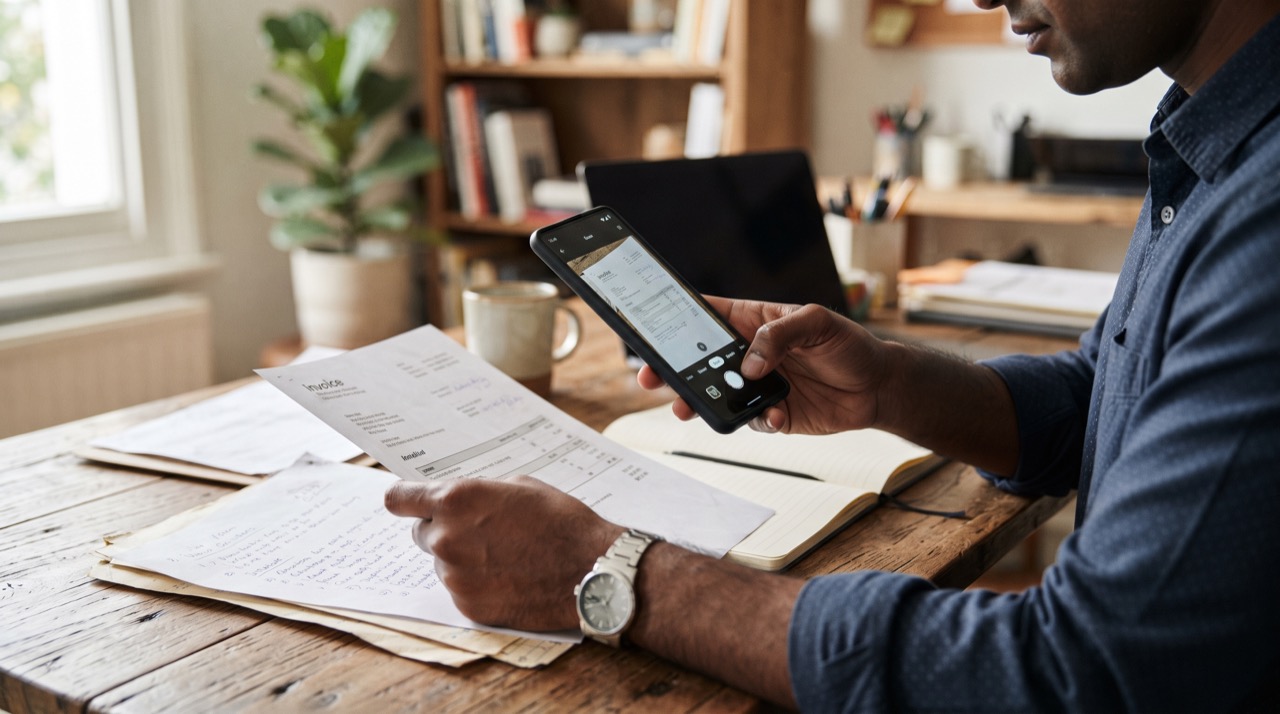
Every week, life in Pakistan seems to demand a "photocopy" of something — your CNIC for a SIM registration, a rent agreement for a bank loan, a fee receipt for your child's school, or a utility bill for a visa file. Running to a photocopy shop every time is slow and often means handing your CNIC to a stranger behind a counter. The good news: the phone in your pocket already has everything it needs to become a proper document scanner, producing files that look sharper than most shop photocopies and save straight as a PDF you can email, print, or upload to a government portal.
The best free scanning apps
You do not need to buy anything. These options work well on both Android and iPhone:
- Google Drive (built-in): Open the Drive app, tap the "+" button, and choose "Scan." It automatically detects the edges of your document, lets you adjust corners, and saves directly as a PDF in your Drive — useful if you already store files in the cloud. Details are on Google's official Drive support page.
- Adobe Scan: A dedicated free app from Adobe with strong auto-crop and text-cleanup features, plus optional text recognition (OCR) so scanned text becomes searchable and even copyable. Good for CNIC copies and long forms. See Adobe's official Scan app page.
- Microsoft Lens: Microsoft's free scanner app is particularly good at whiteboard and receipt modes, and exports directly to PDF, Word, or PowerPoint. Handy if you already use Office or OneDrive. Check Microsoft's official Lens page.
- iPhone Notes app: No download needed. Open Notes, tap the camera icon, choose "Scan Documents," and iOS will auto-capture and let you export as PDF.
Pick one and stick with it — switching between apps just scatters your files across different folders and makes them harder to find later.
Getting a clean, professional-looking scan
The app does the cropping, but you control the quality by how you shoot the photo:
- Place the document on a plain, dark surface (a table with a solid tablecloth or a dark folder works well) so the edge-detection can find the corners easily.
- Use daylight or a bright room light instead of flash — direct flash creates a glare spot that can hide text, especially on the laminated part of a CNIC.
- Hold the phone directly above the document, not at an angle, to avoid a "trapezoid" distorted shape.
- Switch the filter to black-and-white or grayscale for text-only pages (forms, receipts) — this shrinks file size and looks crisper than a full-color photo.
- Always double-check the auto-cropped corners before saving; apps occasionally cut off a corner with a stamp or signature.
Combining pages and keeping files small
Most forms and CNIC front/back copies need to be multiple pages in a single PDF, not separate image files:
- All three apps above let you keep adding pages before you tap "Save" or "Done," so scan the front, then the back, then finalize as one PDF.
- If a bank or WhatsApp upload rejects your file for being too large, use the app's built-in compress option, or reduce the scan quality setting from "high" to "medium" before saving.
- Rename the file immediately — "CNIC_AliHassan_Front.pdf" is far easier to find later than "Scan001.pdf," especially once you have a dozen documents saved.
A good scan is judged the same way a good photocopy is: can someone read every digit of the CNIC number without squinting? If not, redo it — it takes fifteen seconds.
Staying organized and keeping your CNIC safe
- Create one folder per purpose — "Bank Documents," "Job Applications," "School Fees" — inside Drive or your phone's Files app, instead of letting scans pile up in the camera roll.
- For sensitive scans like your CNIC, avoid sharing them over public WhatsApp groups; send directly to the individual or official portal that requested it, and delete old copies from chat threads once the process is done.
- Keep a backup of important scans (CNIC, degree, domicile) in cloud storage as well as on your phone, so a lost or reset phone does not mean redoing everything from a physical copy.
Roman Urdu
Har hafta Pakistan mein kisi na kisi document ki "copy" chahiye hoti hai — SIM registration ke liye CNIC, bank loan ke liye rent agreement, ya visa file ke liye utility bill. Har baar photocopy shop jana time waste karta hai aur CNIC kisi ajnabi ke hath mein dena bhi theek nahi lagta. Achi baat yeh hai ke aapke phone mein pehle se woh sab kuch mojood hai jo ek acha scanner banane ke liye chahiye — aur result shop ki photocopy se bhi zyada saaf hota hai, seedha PDF format mein.
Behtareen free scanning apps
- Google Drive: Drive app kholain, "+" button dabayein aur "Scan" select karein — yeh khud hi document ke corners detect kar leta hai aur PDF save kar deta hai.
- Adobe Scan: Adobe ki free app, jiska auto-crop bohat acha hai aur text recognition (OCR) bhi deta hai taake scan kiya hua text copy bhi ho sake.
- Microsoft Lens: Receipts aur forms ke liye behtareen, PDF ya Word mein save karne ka option deta hai.
- iPhone Notes app: Koi app download karne ki zaroorat nahi — Notes mein camera icon dabayein aur "Scan Documents" choose karein.
Saaf scan kaise banayein
- Document ko plain, dark surface par rakhein taake corners asani se detect hon.
- Flash ke bajaye din ki roshni ya tez light use karein — flash se CNIC ke laminated hisse par chamak (glare) aa jati hai jo text chupa deti hai.
- Phone ko document ke bilkul upar seedha rakhein, tirchha nahi, warna shape kharab ho jati hai.
- Text wale pages (forms, receipts) ke liye black-and-white filter use karein — file size bhi kam hoti hai aur likhai zyada saaf nazar aati hai.
Pages combine karna aur file size kam rakhna
CNIC ka front aur back ek hi PDF mein hona chahiye, alag images ki soorat mein nahi. App mein pages add karte rahein aur end mein "Save" karein. Agar file size zyada ho jaye to app ke andar compress ka option use karein, aur file ka naam waziah rakhein jaise "CNIC_Front.pdf" taake baad mein dhoondna asan ho.
Organize aur CNIC ki hifazat
Har maqsad ke liye alag folder banayein — jaise "Bank Documents" ya "Job Applications." CNIC jaisi sensitive scans ko public WhatsApp groups mein share na karein, seedha zaroorat mand shakhs ya official portal ko bhejein, aur kaam mukammal hone ke baad chat se purani copies delete kar dein. Zaroori documents ka backup cloud mein bhi rakhein taake phone kharab ya reset hone par dobara scan na karna paray.