Getting a new phone should feel exciting, not stressful — but for most people in Pakistan, the panic sets in the moment they realise years of WhatsApp chats, family photos, and saved contacts are sitting on the old handset with no clear plan to move them. The good news is that phone migration has become far more reliable than it used to be, whether you are going Android-to-Android, iPhone-to-iPhone, or crossing over between the two. Follow this order and you will not lose a single memory.
Before You Start: The 10-Minute Checklist
Do not touch your SIM or start restoring anything until both phones are charged past 50%, connected to strong Wi-Fi, and sitting next to each other. Migration tools fail most often because of a weak signal or a phone dying mid-transfer.
- Note down your Google account (Android) or Apple ID (iPhone) email and password — you will be asked to sign in repeatedly.
- Update WhatsApp to the latest version on both phones before you begin; old versions often break the transfer.
- Make sure you have enough free storage on the new phone — check Settings before moving photos or a WhatsApp backup.
- Keep your old SIM in the old phone until the new one is fully set up and verified.
Contacts: Let the Cloud Do the Work
The simplest, most permanent fix is syncing contacts to your Google account rather than relying on the SIM card, which many Pakistani users still default to. On your old Android phone, go to Settings > Accounts > Google > Contacts and turn sync on; this uploads everything to Google Contacts automatically. On the new phone, simply sign in with the same Google account and contacts appear within minutes. iPhone users can do the same with iCloud Contacts, or export contacts as a .vcf file and email it to themselves as a backup. This method also means your contacts survive even if the old phone is lost, stolen, or damaged — something worth doing today regardless of whether you are switching phones soon.
WhatsApp Chats: Same Platform vs Crossing Over
WhatsApp migration depends entirely on whether you're staying on the same operating system or switching.
- Android to Android: Use WhatsApp's built-in "Chat Transfer" feature — open WhatsApp on the new phone, choose "Transfer your chats from an old phone," scan the QR code shown, and keep both phones connected until the process finishes. This moves chats directly, no Google Drive needed.
- iPhone to iPhone: Back up chats to iCloud on the old phone first (Settings > Chats > Chat Backup), then restore from that backup when setting up WhatsApp on the new iPhone.
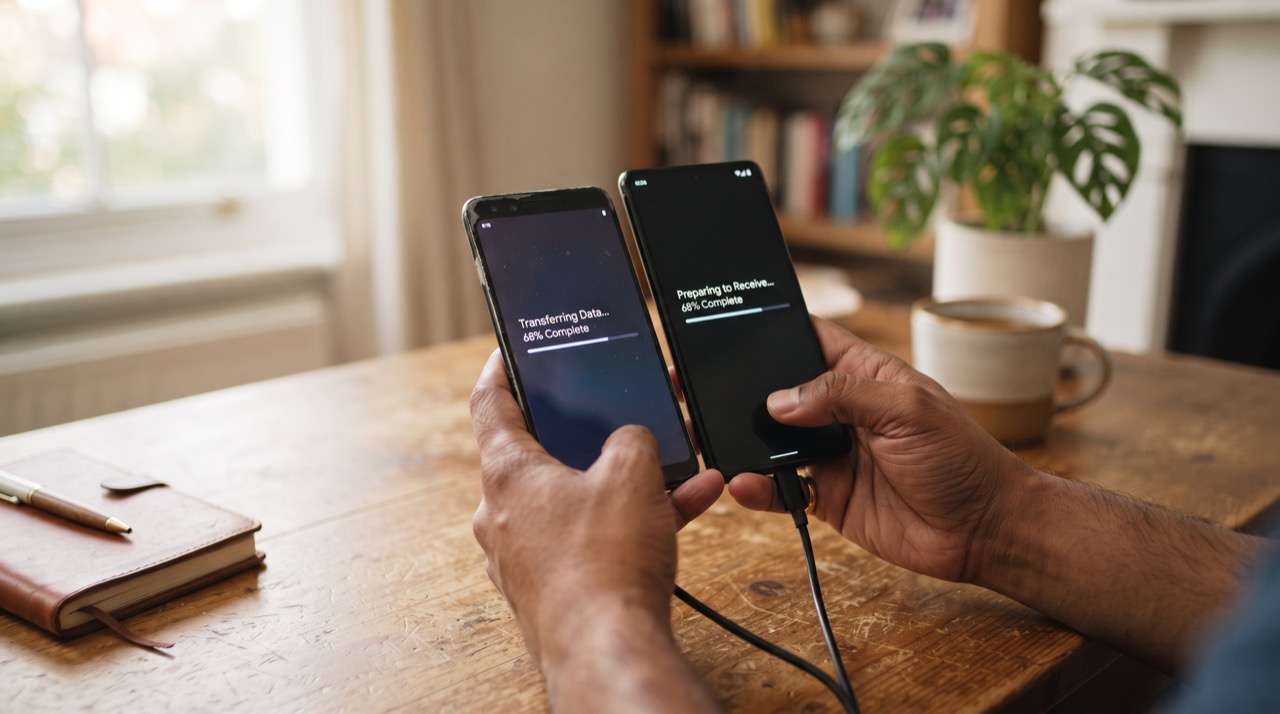
- Android to iPhone or iPhone to Android: Use the official "Move to iOS" (Android to iPhone) or "Move to Android" app. Keep both phones on the same Wi-Fi network, plugged in, and do not use either phone until the transfer bar completes — interrupting it is the single biggest reason chat transfers fail.
Check official WhatsApp guidance before you start, since Meta updates these steps periodically — see the WhatsApp FAQ for the current method for your exact phone models.
A migration is only "done" once you have verified the new phone independently — never format or sell the old one until you've opened the new phone, checked WhatsApp chats, scrolled through your photo gallery, and called a friend to confirm contacts actually work.
Photos and Videos Without Losing Quality
The safest approach is turning on automatic backup before you even unbox the new phone. On Android, install Google Photos, sign in, and let it back up your full gallery over Wi-Fi — this can take hours on a large library, so start it the night before you switch. On iPhone, enable iCloud Photos or connect both phones with a Lightning-to-USB-C (or the official cable) and use Apple's "Quick Start" transfer, which is the fastest and most complete method since it copies everything, including app data. Avoid relying only on WhatsApp media folders for photo backup — WhatsApp compresses images, so originals sent or received outside chats (camera roll photos) need their own backup path through Apple Support tools or Google Photos.
Roman Urdu
Naya phone lena exciting hota hai, lekin Pakistan mein zyada tar logon ko tension tab hoti hai jab yaad aata hai ke purane phone mein saal bhar ki WhatsApp chats, family photos aur contacts pade hain aur transfer ka koi plan nahi. Achi baat ye hai ke ab migration pehle se kaafi asaan aur reliable ho chuki hai — chahe Android se Android ho, iPhone se iPhone, ya dono ke darmiyan switch kar rahe hon.
Shuru karne se pehle dono phones ko 50% se zyada charge rakhein aur strong Wi-Fi se connect karein — kamzor signal ya beech mein battery khatam hona sab se badi wajah hai jab transfer fail hota hai. WhatsApp ko dono phones par latest version par update zaroor karein.
Contacts
Sim card par depend karne ke bajaye contacts ko Google account se sync kar dein — Settings mein jaakar Google Contacts sync on karein, phir naye phone par sirf wohi account login karein aur sab contacts khud aa jayenge. iPhone walon ke liye iCloud Contacts wahi kaam karta hai.
WhatsApp Chats
Agar Android se Android ja rahe hain to WhatsApp ke andar "Chat Transfer" feature istemal karein — QR code scan karein aur dono phones connected rakhein jab tak process complete na ho. iPhone se iPhone ke liye pehle iCloud par backup lein phir naye phone par restore karein. Android se iPhone (ya iPhone se Android) jaane ke liye "Move to iOS" ya "Move to Android" official app use karein, dono phones same Wi-Fi par rakhein aur transfer complete hone tak koi bhi phone touch na karein.
Photos
Google Photos ya iCloud Photos par automatic backup on kar dein taake har photo aur video mehfooz rahe. Sirf WhatsApp ki media folder par bharosa na karein kyunke WhatsApp images ko compress kar deta hai. Naye phone ko istemal karne se pehle purane phone ko kabhi format ya sell na karein — pehle contacts, chats aur gallery achi tarah check kar lein.