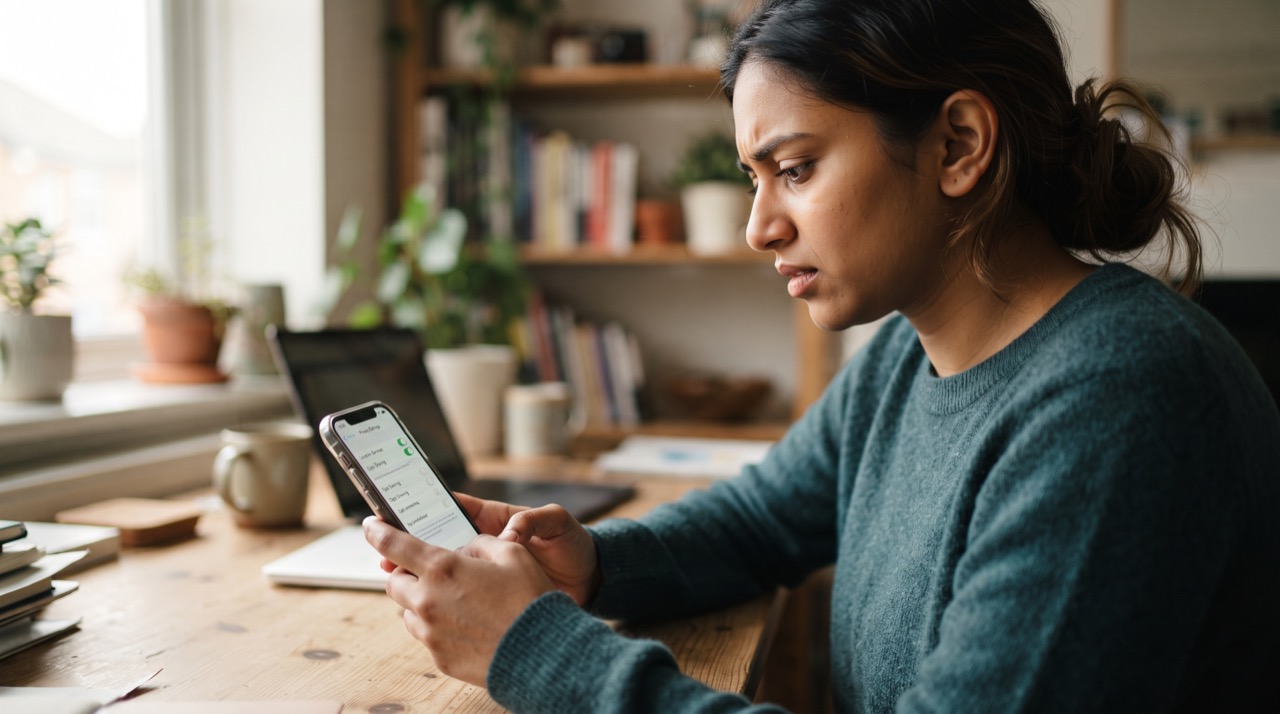
If you have never opened your privacy settings since the day you signed up, you are not alone. Most people in Pakistan set up Facebook or Instagram once, add a profile picture, and never look at the settings menu again. The problem is that both apps quietly add new features over the years, and many of them default to "public" unless you go in and change them yourself. The good news is that a real cleanup takes about ten minutes, and you do not need to be technical to do it. Here is exactly where to click.
Fix "Who Can See My Stuff" First
This is the single most important setting on Facebook. It controls your future posts, your old posts, and your friends list all in one place.
- On Facebook, go to Settings & Privacy → Settings → Audience and Visibility. Set "Who can see your future posts" to Friends, not Public.
- Use "Limit Past Posts" in the same menu. This one tool converts every old public post to Friends-only in a single tap — very useful if you posted publicly for years before thinking about privacy.
- Turn off "Who can see your friends list" or set it to Only Me. In Pakistan, scammers frequently mine public friends lists to build fake accounts of your relatives and message your contacts asking for money.
- On Instagram, switch to a Private Account under Settings → Privacy → Account Privacy, unless you specifically run a public page for business or content.
Take Control of Tag Review
Tag review stops other people from tagging you in embarrassing or fake photos without your say-so.
- On Facebook: Settings & Privacy → Settings → Profile and Tagging → turn on "Review posts you're tagged in before they appear on your profile." Also enable review for tags other people add to your own posts.
- Set "Who can see posts you're tagged in on your profile" to Friends or Only Me.
- On Instagram: Settings → Privacy → Tags and Mentions → choose who can tag you (Nobody, or People You Follow) and turn on "Manually approve tags" so nothing shows on your profile without your review.
- Check Settings → Privacy → Photos of You periodically — this is where old, unapproved tags hide and get forgotten.
Hide Your Phone Number and Personal Info
Your phone number is the easiest thread for a scammer to pull. If it is searchable, anyone can find your WhatsApp, your CNIC-linked SIM, or attempt a SIM-swap based scam.
- Go to Facebook Settings & Privacy → Settings → Privacy → How People Find and Contact You, and restrict who can look you up using your phone number or email to Friends or Only Me.
- Open your Facebook profile, tap About → Contact and Basic Info, and check the audience icon next to your phone number. Change it to Only Me unless you genuinely want the public to call you.
- On Instagram, your number is generally not shown on your public profile by default, but double-check under Settings → Account → Personal Information Settings that it isn't visible in a linked contact card or business info section.
- Turn off "Show my Active Status" on both apps if you don't want people tracking when you're online — Settings → Privacy → Active Status/Show Activity Status.
Two More Things While You're In There
- Turn on two-factor authentication on both accounts (Settings → Security and Login for Facebook, Settings → Security for Instagram) so a stolen password alone can't lock you out.
- Review "Apps and Websites" under Facebook settings and remove anything you don't recognize — old quiz apps and games are a common source of data leaks.
Privacy settings are not a one-time job — treat them like changing your door lock: quick, occasional, and worth doing before something goes wrong, not after.
None of this requires technical skill, just ten focused minutes. Once it's done, both platforms remember your choices, so you won't need to repeat this unless you get a new phone or reinstall the app. For deeper reading on official settings and safety tools, Meta publishes its own guidance directly on the Facebook Help Center and the Instagram Help Center.
Roman Urdu
Agar aap ne kabhi apni Facebook ya Instagram ki privacy settings check nahi ki, to aap akele nahi hain. Zyada tar log account bana kar sirf profile picture laga dete hain aur settings ko dobara kabhi nahi kholte. Masla yeh hai ke waqt ke sath dono apps naye features add karti rehti hain, aur bohat sari settings "public" par set hoti hain jab tak aap khud jaa kar tabdeel na karein. Achi baat yeh hai ke poora cleanup sirf 10 minute mein ho jata hai.
Who can see kya settings: Facebook par Settings & Privacy → Settings → Audience and Visibility mein jaa kar future posts "Friends" par set karein, na ke Public. "Limit Past Posts" use karein taake purani public posts bhi ek click mein Friends-only ban jayein. Apni friends list ko bhi Only Me rakhein — Pakistan mein scammers public friends list dekh kar fake accounts banate hain aur aapke rishtedaron se paise mangte hain. Instagram par account ko Private kar dein, jab tak aap business ke liye public na chahte hon.
Tag review: Facebook par Profile and Tagging mein "Review posts you're tagged in" on karein taake koi bhi photo aapki approval ke bagair profile par na aaye. Instagram par Tags and Mentions mein "Manually approve tags" on kar dein.
Phone number chupayein: Facebook Settings → Privacy → How People Find and Contact You mein jaa kar phone number aur email se search karna Friends ya Only Me tak mehdood karein. About section mein Contact Info ke paas jo audience icon hai, usay Only Me karein — warna koi bhi scammer aasani se aapka number nikal kar SIM-swap ya fraud call kar sakta hai.
Extra tips: Dono platforms par two-factor authentication zaroor on karein, aur Facebook ke "Apps and Websites" mein jaa kar purane, na-pehchane apps hata dein — yeh aksar data leak ki wajah bante hain. Yeh sab kaam ek dafa karne se sal ka sal chalta hai, jab tak naya phone na lein.