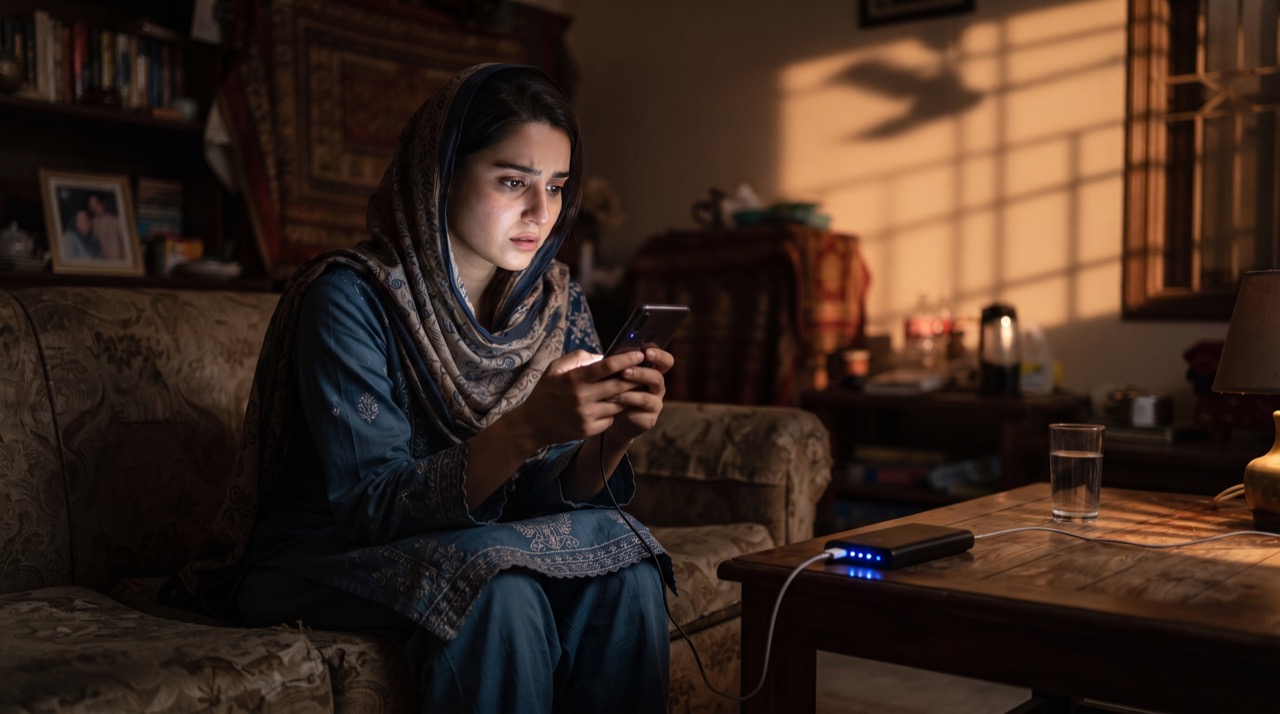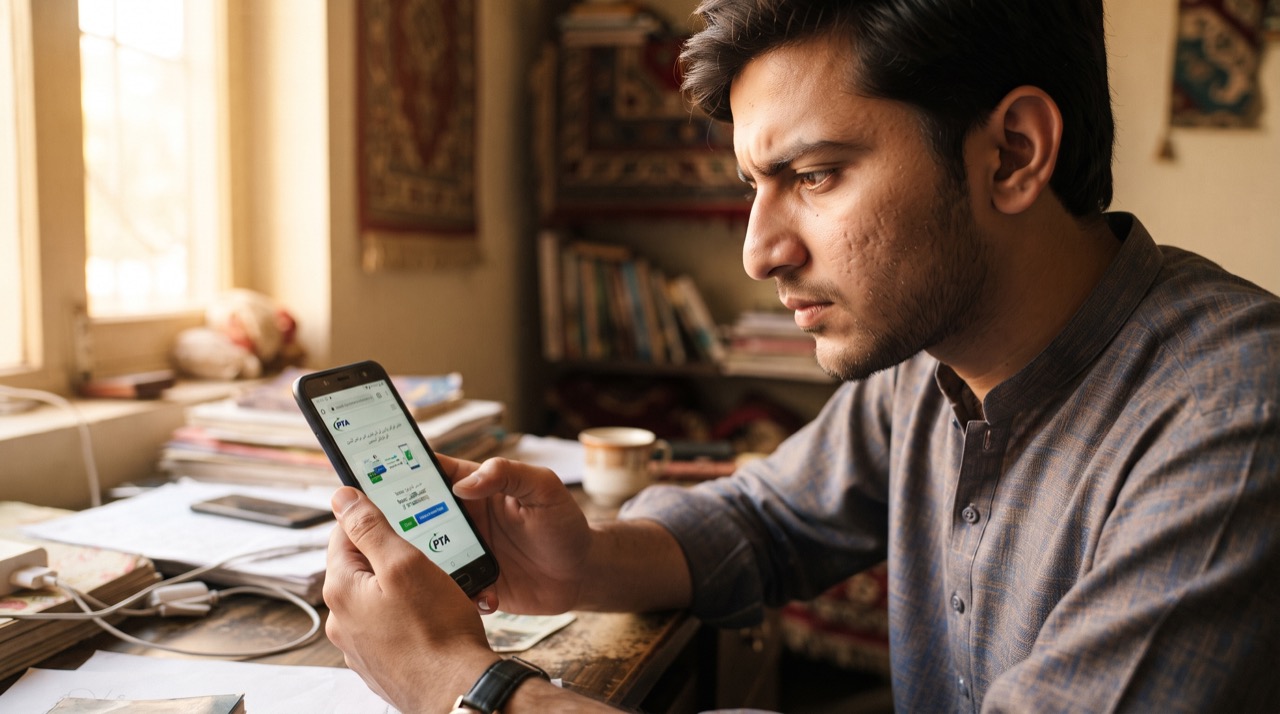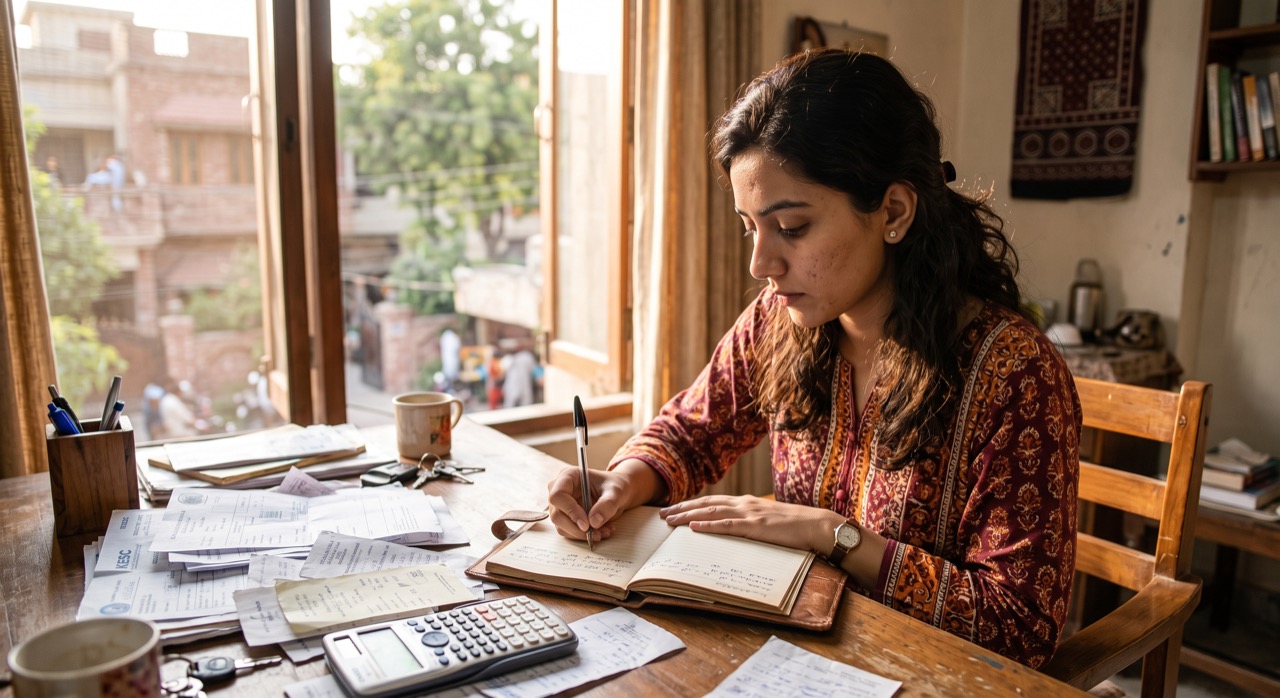
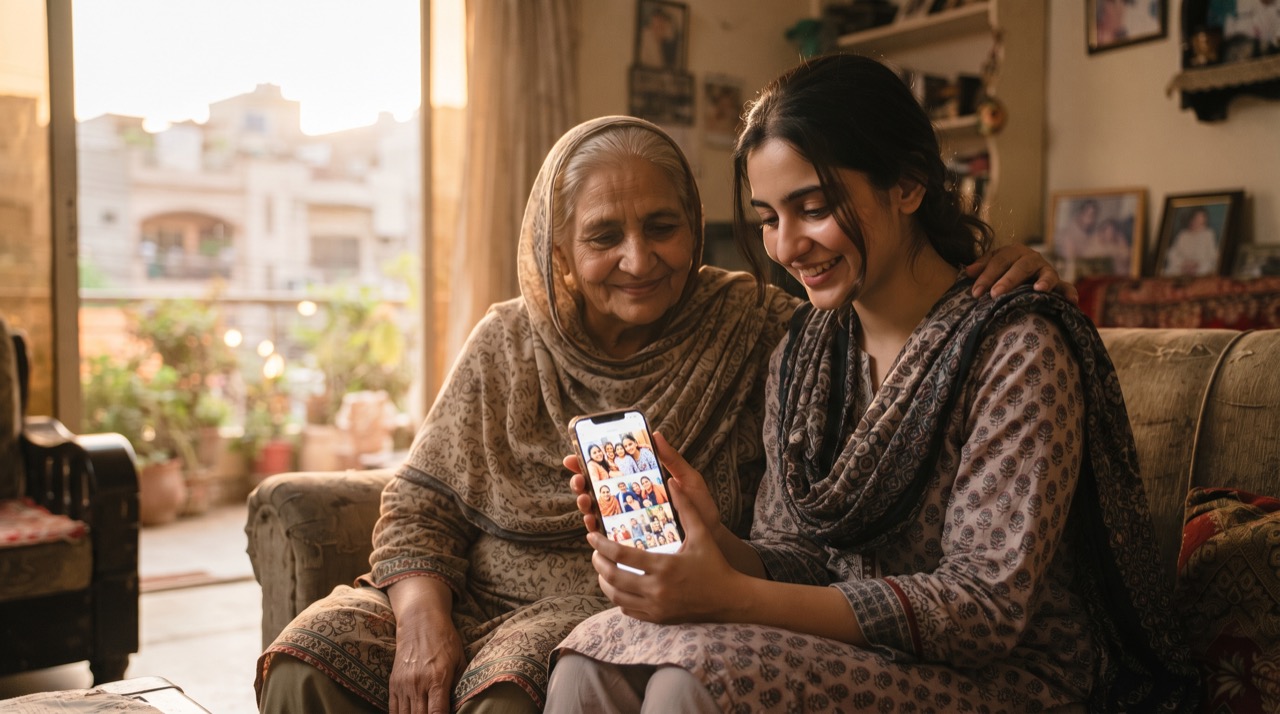
Every household in Pakistan has a phone somewhere with thousands of photos on it — shaadi pictures, a child's first steps, a grandparent who has since passed away, screenshots of important documents. And every year, thousands of these collections vanish in a second: a phone drops in a bucket of water, gets stolen at a bus stop, or simply dies of old age with no warning. The fix is not complicated or expensive. It is a five-minute setting change that most people never turn on.
Why Automatic Backup Matters More Than You Think
Manually copying photos to a laptop "when you get time" almost never happens consistently. Automatic backup removes the human factor — the moment you take a photo, it quietly uploads in the background and sits safely on Google's servers, independent of what happens to your device. If your phone is lost, stolen, or damaged, you sign in on any other phone and your entire photo history is right there.
Setting Up Google Photos Backup, Step by Step
- Install or open the Google Photos app — it comes pre-installed on almost every Android phone and is free on the App Store for iPhone.
- Sign in with a Google account (the same one used for Gmail is fine).
- Tap your profile photo in the top-right corner, then go to Photos settings → Backup, and switch the toggle on.
- Choose your upload quality: Storage saver compresses photos slightly to save space, while Original quality keeps every pixel but fills your storage faster. For most family photos, Storage saver is more than good enough.
- Under Backup settings → Mobile data usage, keep uploads set to Wi-Fi only unless you have an unlimited data plan — this avoids surprise data charges, which matters a lot on prepaid packages common across Pakistan.
- Leave the app installed and let your phone charge overnight on Wi-Fi occasionally; that's usually when the backlog finishes uploading.
Understanding What Your Free Storage Actually Gives You
A common misunderstanding is that Google Photos is "unlimited." It used to offer unlimited free storage at reduced quality, but that changed in 2021. Today every Google account gets 15GB of free storage shared across Gmail, Google Drive, and Google Photos combined. That 15GB fills up faster than people expect once Gmail attachments and Drive files are added into the mix.
You can check exactly how much you've used and what's eating your space from the Google Account storage page, reachable through your account settings. If 15GB isn't enough — which is common for families who take a lot of photos and videos — Google sells paid Google One plans (100GB, 200GB, and larger) at low monthly cost, and one plan can be shared across family members.
Smart Habits to Stay Ahead of Running Out of Space
- Periodically delete blurry duplicates and screenshots you no longer need — the app has a "Free up space" tool that removes photos from your phone only after confirming they're safely backed up.
- Turn on backup for WhatsApp media separately if you want those photos preserved too, since WhatsApp Status and chat images don't auto-sync to Google Photos on their own.
- Every few months, download a full copy to a laptop or external hard drive as a second layer of safety — cloud and local backup together is the real gold standard.
A photo you never back up isn't really saved — it's just borrowed from your phone's battery and luck.
Setting this up once, today, is worth more than a year of good intentions. Full details and troubleshooting for any device are available on the official Google Support site.
Roman Urdu
Har ghar mein ek phone zaroor hoga jis mein hazaron photos pari hoti hain — shaadi ki tasveerein, bachpan ke pal, aur un logon ki yaadgar pictures jo ab hamare saath nahi. Aur har saal kai log yeh sab kuch ek pal mein kho dete hain — phone paani mein gir jaye, chori ho jaye, ya bas kharab ho jaye. Iska hal bohot asaan hai: sirf paanch minute mein automatic backup on karna.
Automatic Backup Kyun Zaroori Hai
Manually laptop mein photos copy karna "fursat mile to" wala kaam hai jo kabhi regular nahi hota. Automatic backup is masle ko khatam kar deta hai — jese hi photo khainchi jati hai, woh chupke se Google ke server par upload ho jati hai. Phone kho jaye ya kharab ho jaye, aap kisi bhi doosre phone par login karke apni saari photos wapas dekh sakte hain.
Google Photos Set Up Karne Ka Tareeqa
- Google Photos app open karein aur apne Google account se sign in karein.
- Profile photo par tap karein, phir Photos settings → Backup mein jaa kar toggle on kar dein.
- Storage saver quality zyada tar logon ke liye kaafi hai, jab ke Original quality jagah zyada leti hai.
- Wi-Fi only upload rakhein taake mobile data ka bill na barhe — yeh Pakistan mein prepaid users ke liye khaas ahem hai.
Free Storage Ko Samjhein
Bohot logon ko lagta hai Google Photos "unlimited" hai — lekin 2021 se har Google account ko sirf 15GB free storage milta hai jo Gmail, Drive aur Photos teenon mein baant kar use hota hai. Agar 15GB kam par jaye to Google One ke paid plans sasti keemat par mojood hain jo pura khandan mil kar share kar sakta hai.
Har kuch mahine baad apni photos ka ek copy laptop ya external drive par bhi rakh lein — cloud aur local backup dono saath mein sab se mehfooz tareeqa hai. Zyada tafseel ke liye Google Support par dekhein.